Slide header and footer
This only applies to legacy themes. To learn more about our new, modern theme designer, head over to Using the theme editor.
You can activate custom header and footer elements that will overlay the presentation. This enables you to style your presentation like you would any other corporate presentation. There are several properties you can put in three slots per header or footer element. These properties will be dynamically inserted in your users' final presentation.
To activate the header and/or footer check the Activate Custom Slide-Header/Slide-Footer checkbox.
Three elements each can be defined for the header and footer: one on the left, one in the middle and one on the right.
If you feel like it you can style the header and footer with custom CSS later.
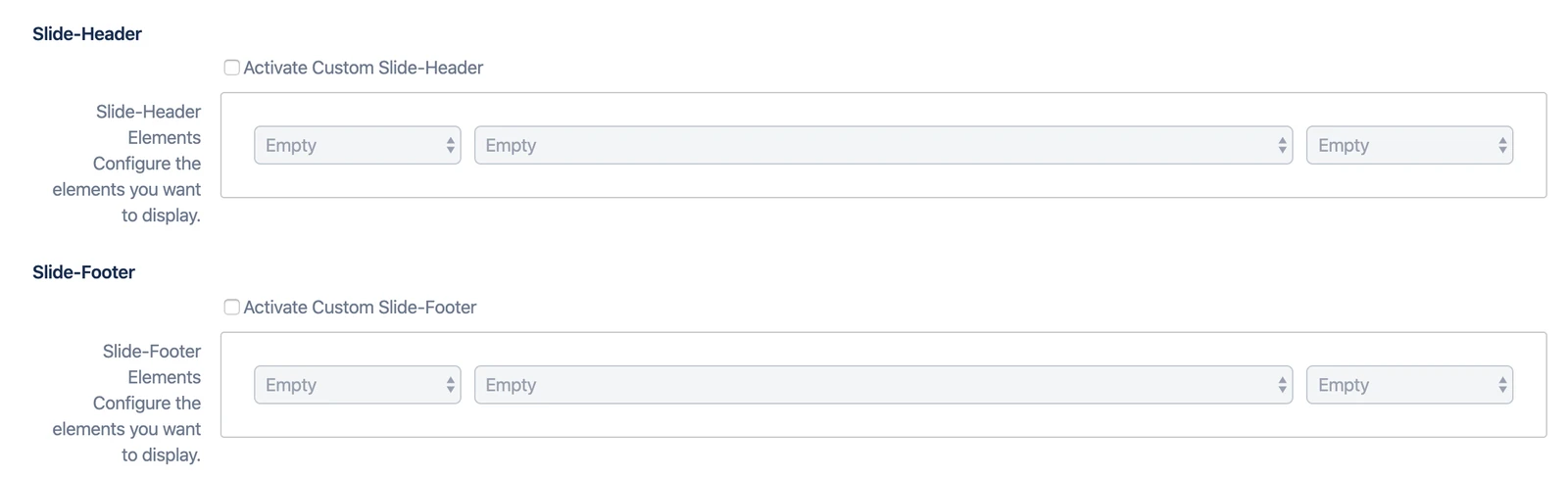
Properties
| Name | Purpose |
|---|---|
| Empty (standard) | Nothingness. The area will stay empty. |
| Logo | Displays the Logo you defined in Basic options. |
| Custom Text | Displays the Custom text you defined in Basic options. |
| Top headline of slide column | Displays the H1 or H2 headline from the slide at the top of the current column. Stays empty on those top slides. |
| Closest higher headline | Displays the nearest higher headline from before. It works as follows: - It searches the current slide for a headline. Let’s say it found a H4. - Now, it will look on all slides before the current one for headlines of level 1-3 (higher than our H4). - The closest headline found is used. |
| Path of headlines | Displays a breadcrumb path of headlines leading to the current slide. It works as follows: - It searches the current slide for a headline. Let’s say it found a H4. - Now, it will look on all slides before the current one for headlines of level 1-3 (higher than our H4). - It will now create a breadcrumb path of these headlines, moving backwards and upwards (when it has found a H2, it will not move "down" to a H3but will only look for an H1). - This will result in a path like “Headline 1 > Headline 2 > Headline 3”.Please note that this path can be quite some text. Make sure your typical content structure matches and rather use this property in the bigger center areas of header and footer. |
| Slide Number | Displays the current slide number (e.g. 3.1) in the defined slot. |
| Presenters Name | Displays the username of the current Confluence user. |
| Timer | A timer showing the time elapsed since the presentation started. |
| Clock | A clock showing the current time of the day in hours and minutes. |
| Today’s date | The current date, formatted in your locale. |
| Publishing Date | The date the presented version of the main page was published. |
| Page Version | The page version number as in the Confluence version history. |