Legacy: Print Menu to PDF
This limited print functionality only applies to legacy themes. For modern themes, refer to Export to PDF file. Consider upgrading your theme to a modern theme to enjoy a superior export functionality.
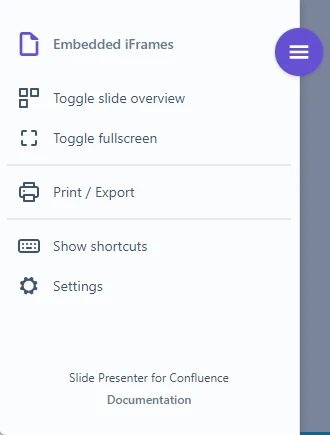
Slide Presenter supports printing your presentation and exporting it as a PDF file. Start the presentation as you are used to and open the presentation main menu, then click on “Print / Export”.
A dialog will appear that explains the most important rules.
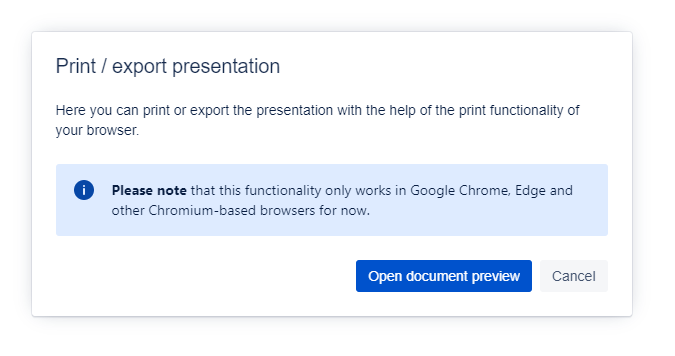
Click on “Open document preview” to start the content transformation process and show the presentation in a paged document view.
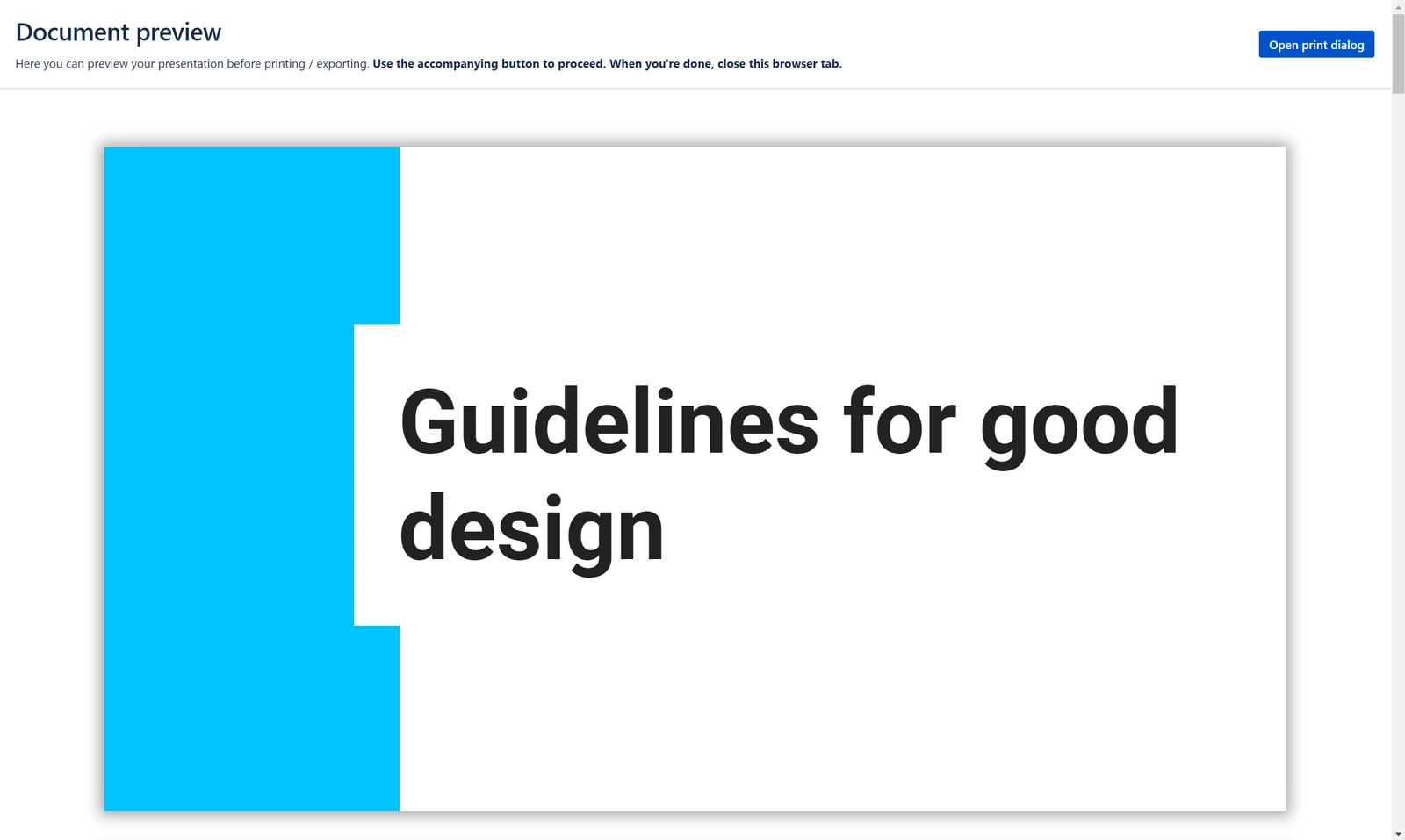
You can review the layout of your presentation.
If your presentation contains iFrames with external content, this is your opportunity to fine-tune the content.
The export / printout will contain the iFrame exactly like it is when you press the “Open print dialog” button.
When you’re ready to print or export, click on the “Open print dialog” button in the top right corner. The print dialog of your browser will open:
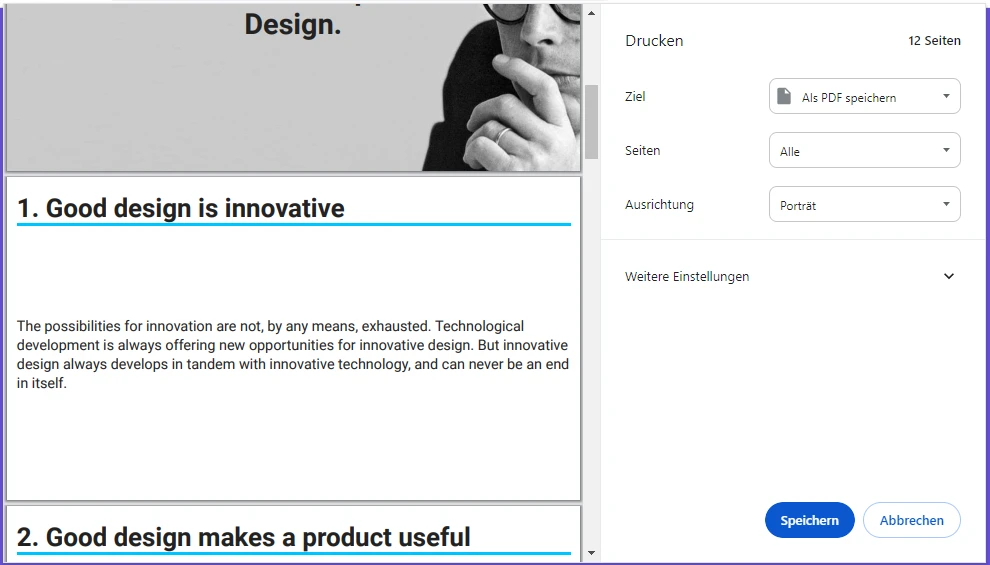
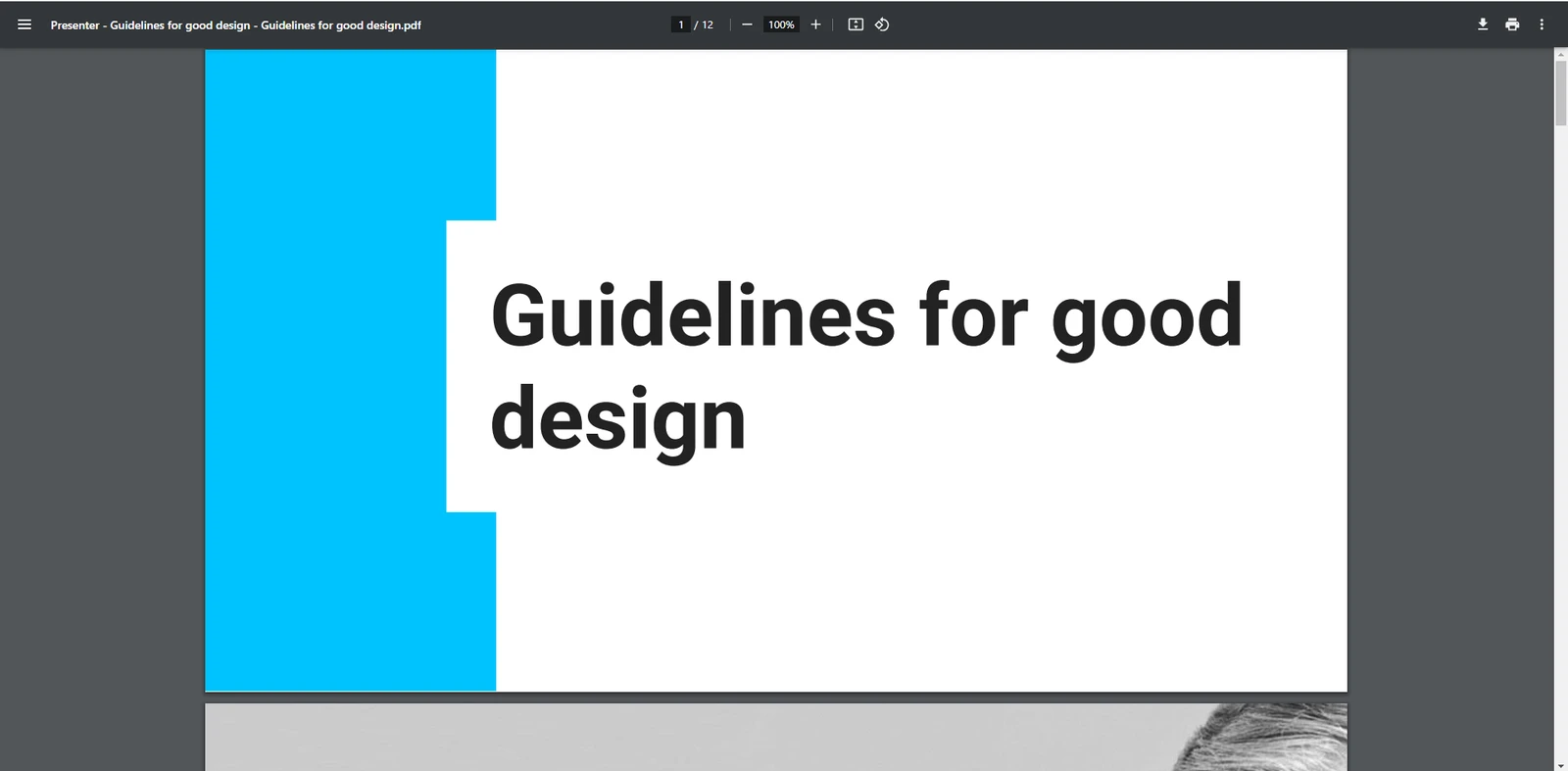
If you want to save the presentation as a PDF file, choose “Save as PDF file” in the target dropdown. The naming differs between browsers, but all modern browsers offer some built-in PDF save functionality. On Windows, “Microsoft Print to PDF” usually is pre-installed.
Make sure that the following advanced options in the print dialog are set correctly:
- Headers and footers should be off
- Background graphics should be on
Click on the “Save” button and tada, your presentation is saved as a PDF file for you to store and distribute!
Browser Compatibility
Unfortunately, not all browsers support the near-magic tricks we require to transform the content. The current support matrix looks like this:
| Desktop | PDF Export supported |
|---|---|
| Microsoft Edge | ✅ |
| Google Chrome (Windows and Mac) | ✅ |
| Opera | ✅ |
| Brave | ✅ |
| Mozilla Firefox (all platforms) | ➖ |
| Safari (Mac) | ➖ |
This means that 91% of our users can use the export functionality.
If you are on Firefox or Safari - or you want finer control over the resulting PDF - switch to a modern theme. Themes built in the modern theme editor come with a much better PDF export: it does not rely on the browser's print dialog, so it works in every browser, and it lets you configure paper format, file naming, security and more. See Migrating to the modern theme editor.
Next: Take your presentation game to the next level with our Slide Presenter Macros.