Integration with Jira
Presenter plays nicely with most Jira integrations - for both Jira Cloud and Jira Server / Data Center.
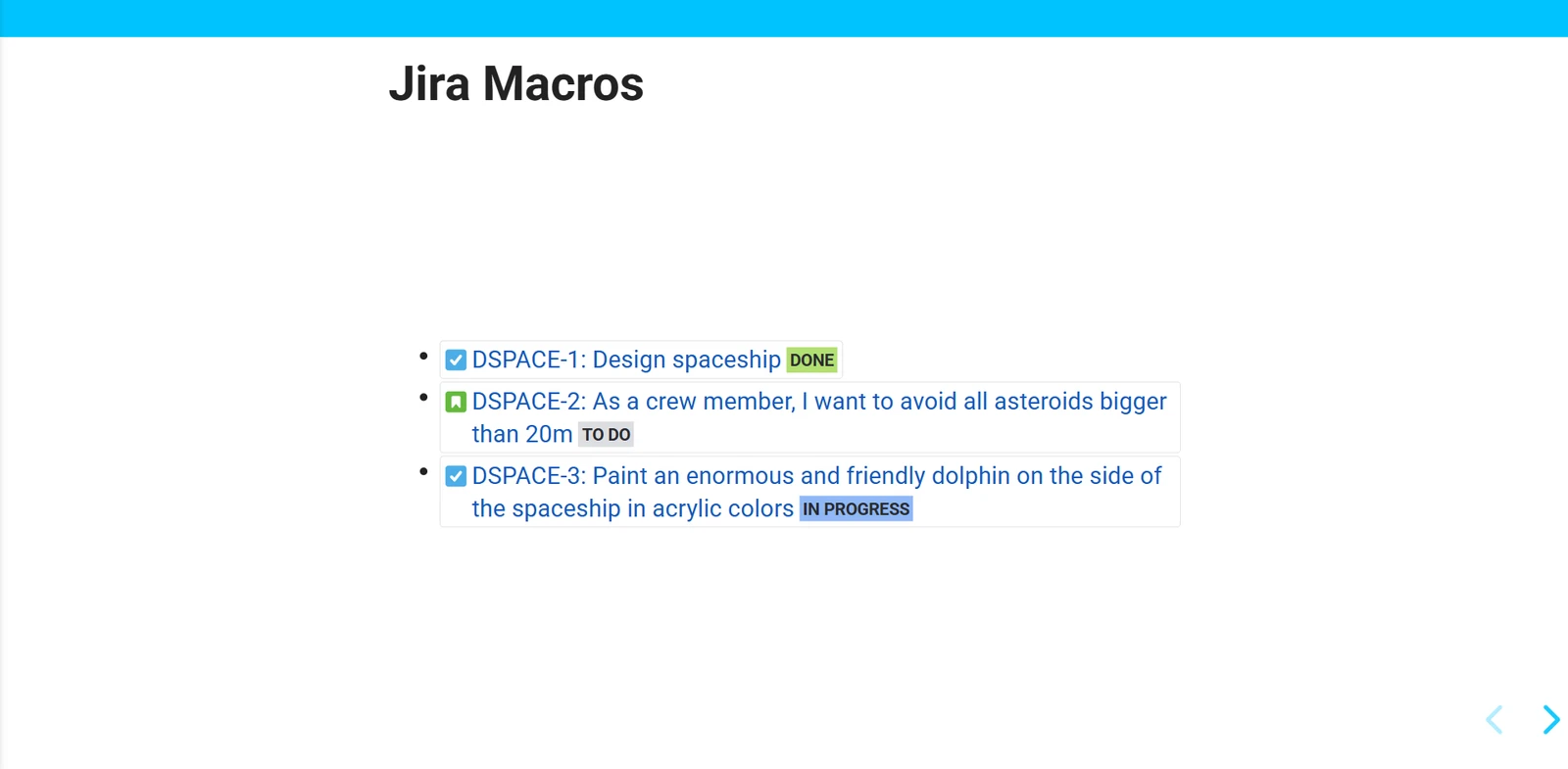
Jira issue links
Links to Jira issues display similar to how they are displayed on the Confluence page: You get the icon, key, description and status.
Confluence Cloud with “external” (as in “different domain”) Jira instances only:
For the Jira issue information to show in the presentation, the Jira instance has to be correctly connected as an Application Link - please follow this guide.
Jira Tables
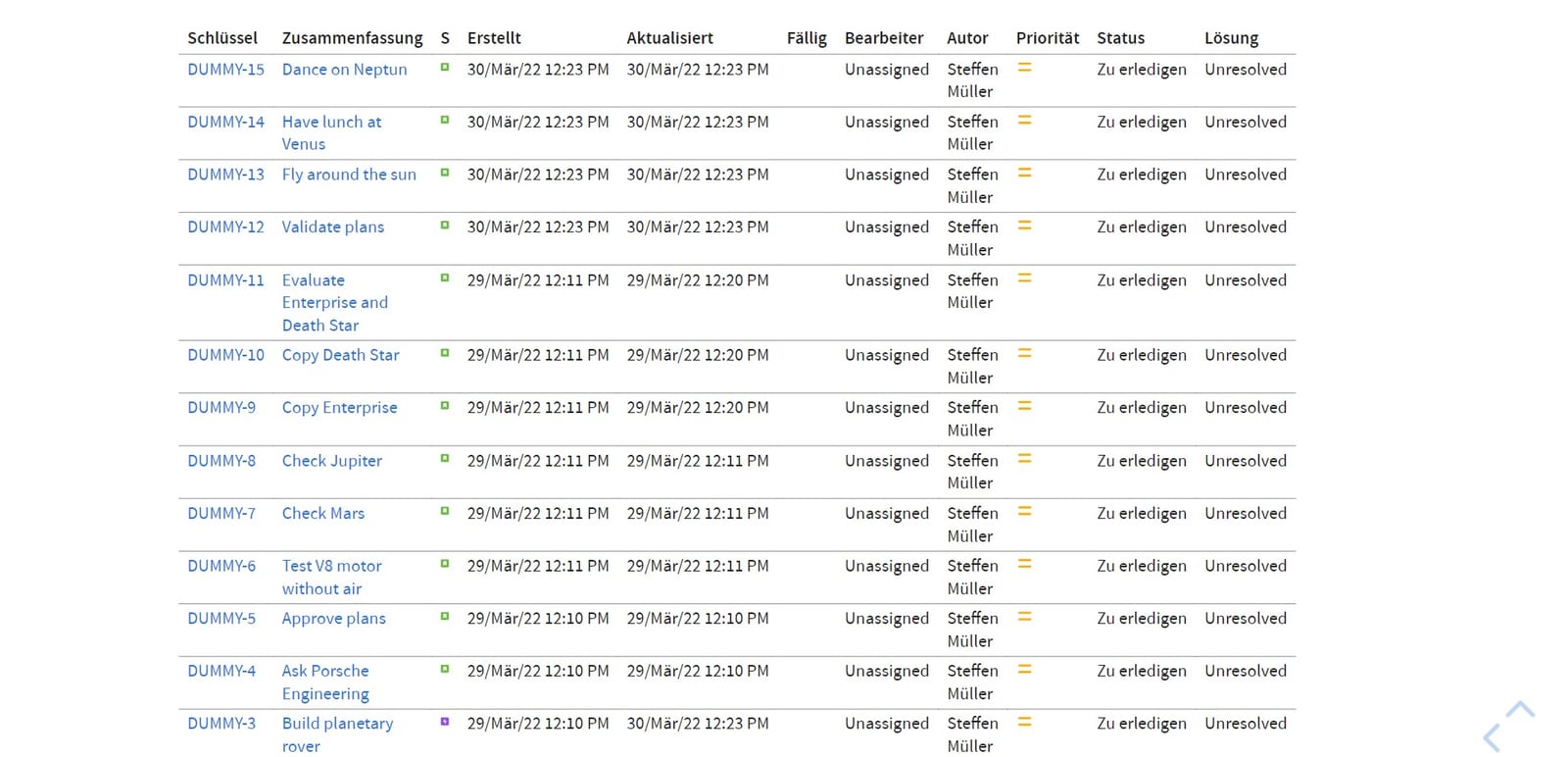
Jira issue tables in Confluence pages are displayed as expected in the Presentation.
Roadmaps
The Roadmap integration differs between Cloud and Data Center / Server.
Cloud
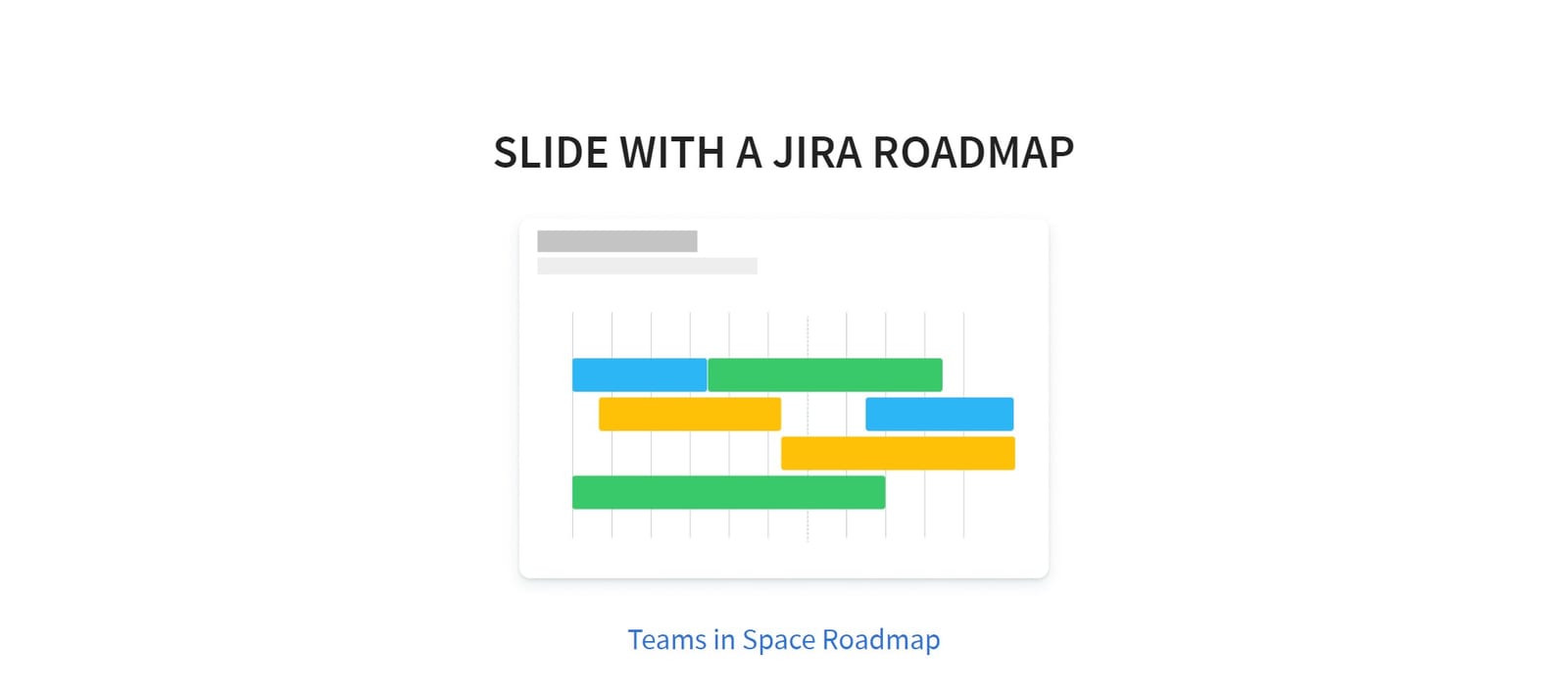
Jira Cloud Roadmaps cannot be embedded in 3rd party apps. This is a security setting we cannot influence. Best thing we can do is detect embedded roadmaps and insert an illustration linking to the actual roadmap in Jira:
Data Center
Advanced Roadmaps for Jira on the Data Center and Server editions work as expected, rendering as an iFrame inside your Presentation with full interactivity:
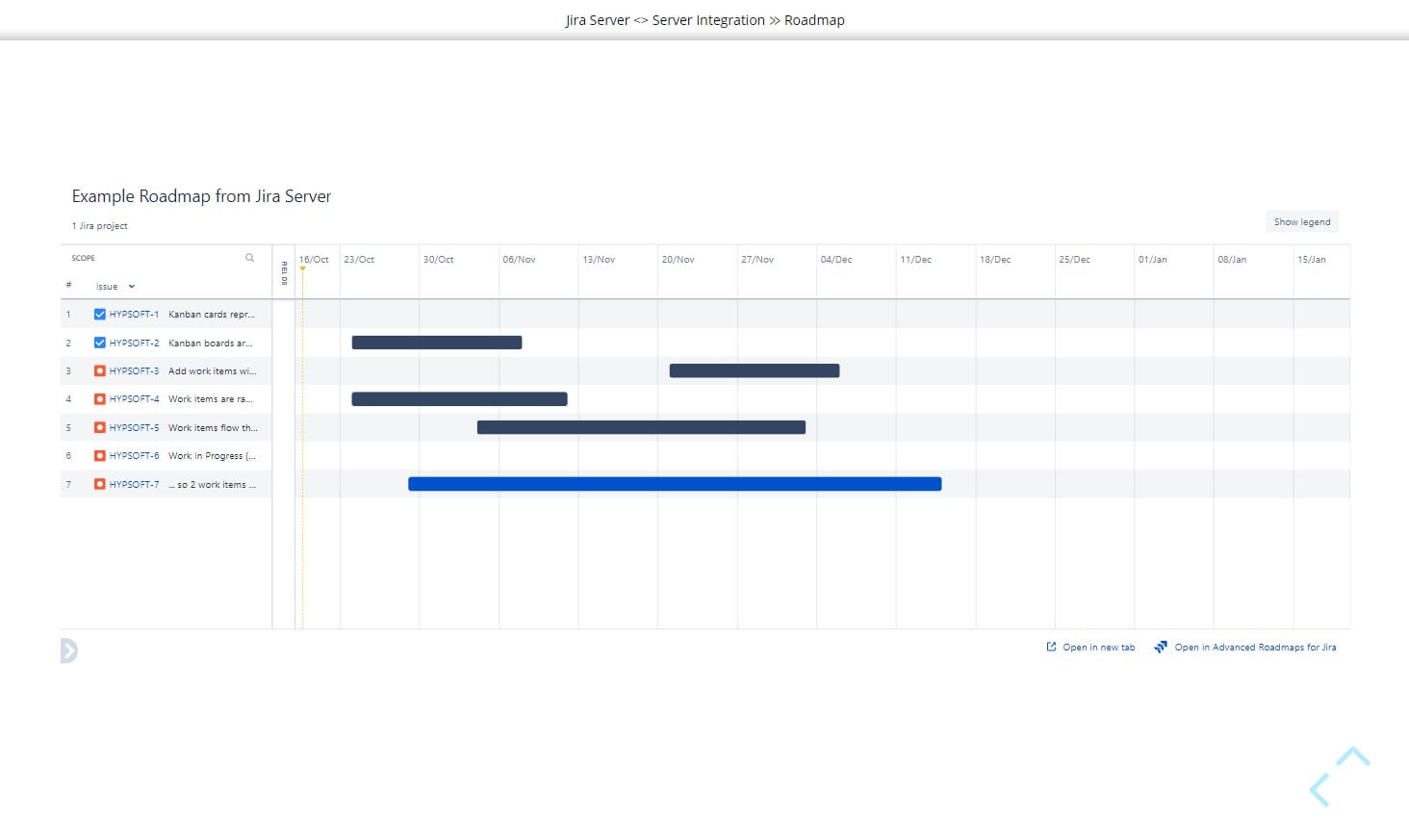
As a Roadmap requires quite some space, consider activating the 16:9 slide ratio theme option.
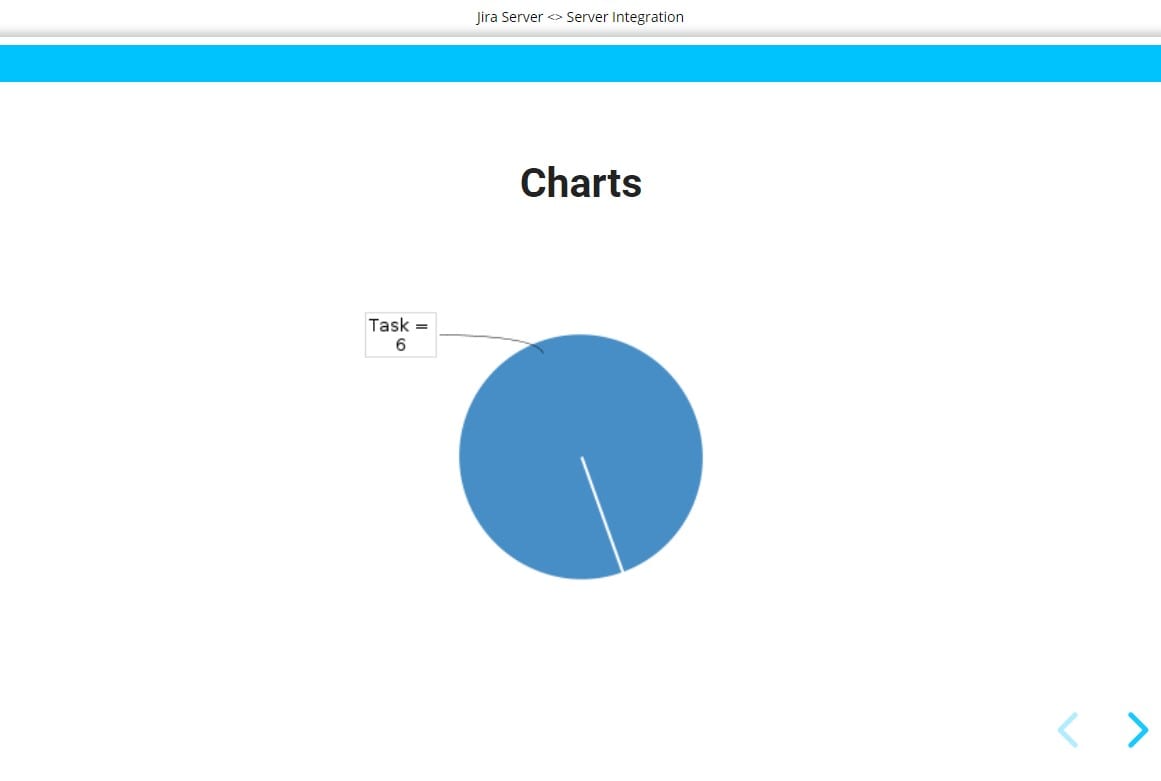
Issue Charts
Charts simply work as expected.
Cloud Only: Issue Calendar and other “widgets”
Widgets (only existing in the Jira Cloud Editions) do not work. Unfortunately, we do not even receive additional info, just the text that “Widgets do not work”.
Pro Tipp: Use the “Hide in presentation” and “Show in presentation” macros to offer an alternative to your users, like a direct link to the widget in Jira.
Data Center only: External Gadgets
Slide Presenter supports external gadgets, which means that all typical Jira dashboard widgets can be presented. Learn more at External Gadget Support on Data Center.
Slide Design Tip: Jira integrations need space on your slides
Jira issue tables and Roadmaps require quite some screen estate, in contrast to typical presentation content.
Therefore, we recommend using a theme in 16:9 format when displaying these kinds of content.
💡 Consider creating two separate themes:
- One for Jira-heavy presentations with 16:9 for that extra space
- One without 16:9 to keep the more refined look of narrower slides for normal presentations